FUIButtonBlockTextIcon

The FUIButtonBlockTextIcon widget is arguably the most frequently utilized widget within this UI Kit. Envision this as a variant of Flutter’s ElevatedButton, excluding the ripple effects. This enhancement imbues it with a more “ Bootstrap” aesthetic.
As its name implies, it is a fully colored “block” styled button that incorporates text and an icon as its label.
Widget Class Location
The FUIButtonBlockTextIcon widget classes could be found in:
The FUIButtonTheme class serves as the repository for default theme variables and values.
Accessing the theme
To access the theme class object, do the following:
Usage
The FUIButtonBlockTextIcon widget is user-friendly and requires minimal configuration. It accepts the label text (and an optional icon) and an onPressed callback. The usage is straightforward:
Block level
The FUIButtonBlockTextIcon component offers two block modes:
Full: The button is stretched to occupy the available width of its parent containing widget.
Fit: The button’s width is adjusted to match the width of its label text.
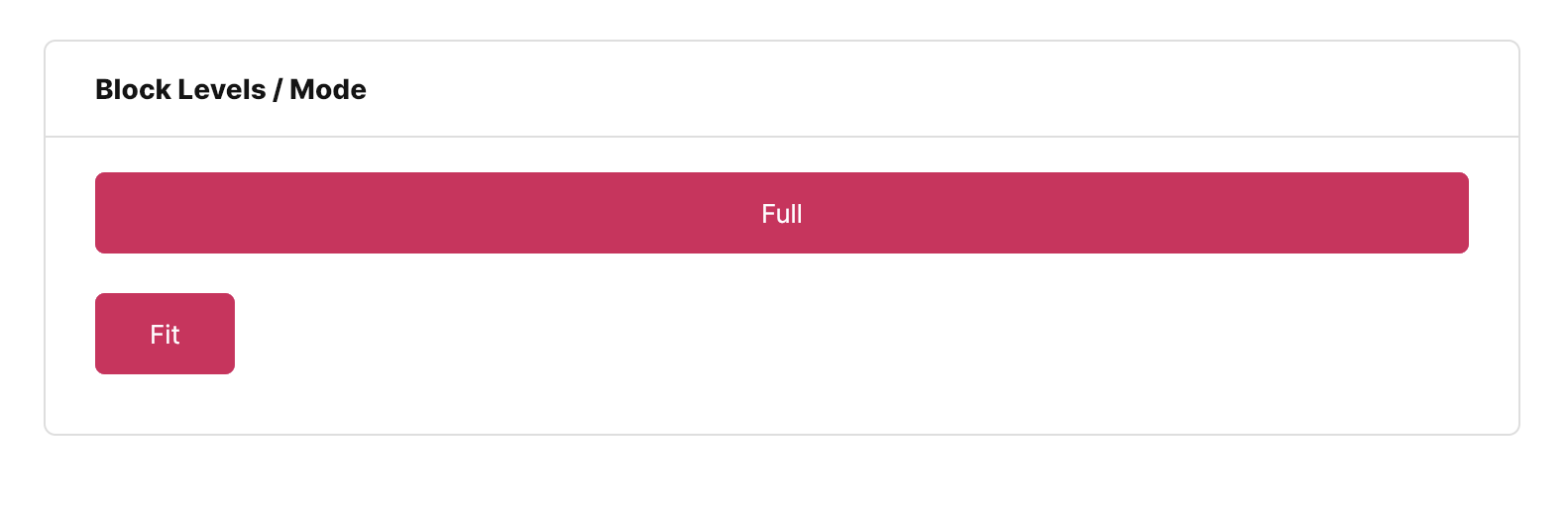
This can be accomplished by configuring the fuiButtonBlockLevel parameter, which accepts values from the FUIButtonBlockLevel enum.
Changing the size
Different sizes could be configured for the FUIButtonBlockTextIcon, namely:
Large
Medium (default)
Small
This can be accomplished by configuring the fuiButtonSize parameter, which accepts values from the FUIButtonSize enum.
Changing the shape

The FUIButtonBlockTextIcon comes with 2 different shapes, namely:
Square (default)
Rounded - with rounded sides.
This can be accomplished by configuring the fuiButtonShape parameter, which accepts values from the FUIButtonShape enum.
Positioning Text and Icon

The position of the text and icon of the button label can be swapped. The icon of the left or right side can be placed on top of the text, or vice versa.
This can be accomplished by configuring the fuiButtonTextIconPosition parameter, which accepts values from the FUIButtonTextIconPosition enum.
Changing the color scheme
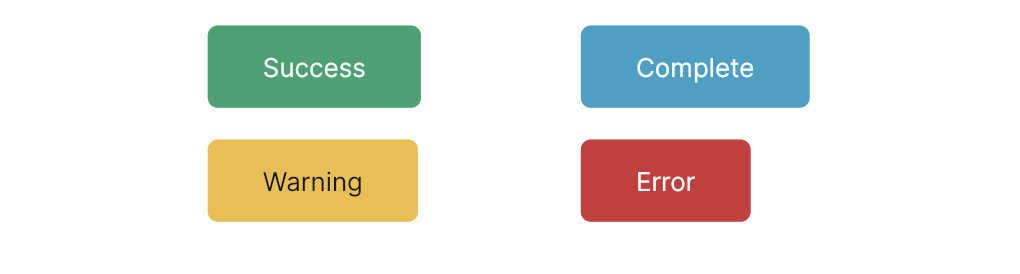
The FUIButtonBlockTextIcon can be customized with a different color scheme by configuring the fuiColorScheme parameter. This parameter accepts values from the FUIColorScheme enum, allowing for flexibility in color selection.
Enabling / Disabling with Controller

The FUIButtonBlockTextIcon enables the control of button functionality through a controller.
This functionality can be implemented using the FUIButtonController controller.
Major Parameters
Parameters | Description |
|---|---|
Text text | The label text of the button. |
Icon? icon | The icon for the button (if any). |
FUIButtonTextIconPosition fuiButtonTextIconPosition | The position of the label text and icon in the button. |
FUIColorScheme fuiColorScheme | The desired color scheme of the button. |
FUIButtonSize fuiButtonSize | The desired pre-configured size of the button |
FUIButtonShape fuiButtonShape | The desired pre-configured shape of the button. |
FUIButtonBlockLevel fuiButtonBlockLevel | Stretch the button to the fullest width or fit mode. |
FUIButtonController? fuiButtonController | The controller to toggle enable / disable for the button. |
Color? backgroundColor | A custom background color for the button. |
Other parameters
The other parameters corresponds to the ones available in ElevatedButton.