Text Input - FUIInputText
The FUIInputText is likely the most frequently utilized text input widget within the UI kit, facilitating the input of textual data.
FUIInputText offers a comprehensive set of configurable options, including the modification of status borders and the concealment of input values.
Widget Class Location
The FUIInputText widget classes could be found in:
Widget Theme Location
The FUIInputTheme class is the theme class holds the default theme variables/values.
Accessing the theme
To access the theme class object, do the following:
Anatomy

A typical UI structure for the FUIInputText component consists of a expandable/shrinkable label that shrinks when the text field is in focus or when the text value was entered in the field. The component also includes a border, an optional side icon, a status border with text and indicator, and a mandatory indicator.
Usage
Here is how to declare the FUIInputText widget:
With label or without label

If you prefer not to have the animated label displayed within the input box, you may toggle the visibility of the label.
Changing the size
Like many other Focus UI Kit widgets, the size of the FUIInputText can be adjusted using the fuiInputSize parameter, namely:
Large
Medium (default)
Small
Side icon

A side icon can be included for the FUIInputText widget, as follows:
Changing the position of the side icon
Showing the Mandatory indicator
The mandatory indicator serves solely as a decorative element positioned at the top corner of the input box.
Changing the Mandatory indicator
To modify the mandatory indicator, simply include an indicator widget of any kind via the mandatoryIndicator parameter.
Doing things with Controller - FUIInputFieldController
The FUIInputFieldController class is responsible for controlling specific aspects of the FUIInputText programmatically.
Initializing the FUIInputFieldController
Enabling / Disabling the Input Field
Changing status type and text
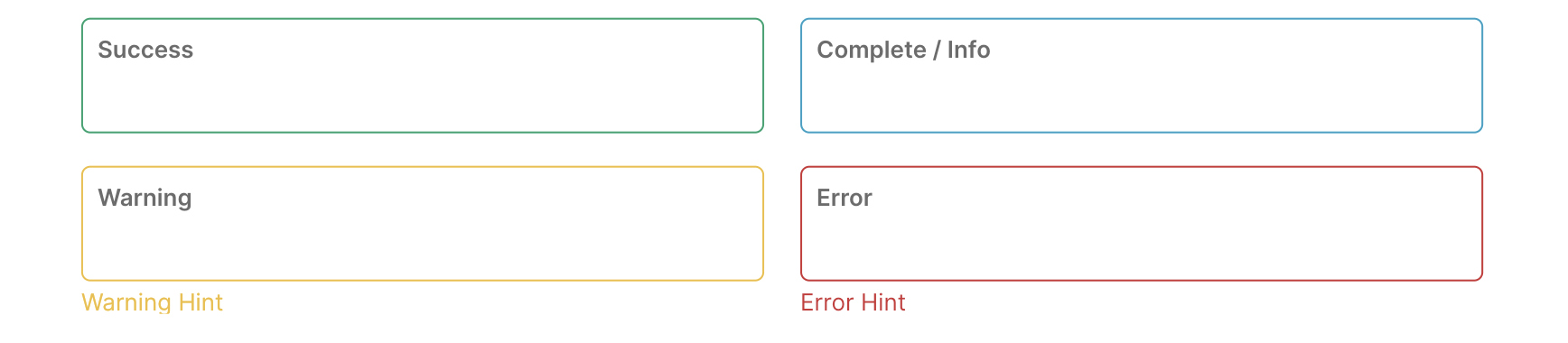
In certain scenarios, there may be a need to prompt for specific status messages or input value highlights, primarily after validating input fields.
The border color of the input box could be changed to indicate the status type. To achieve this, utilize the controller and assign the fuiInputStatusType property. This property accepts a value from the FUIInputStatusType enum. Additionally, assign the fuiInputStatusText property for displaying the status message.
Making the input field READ ONLY
To render the input field as read-only (non-editable), simply execute the following code:
Parameters
Parameters | Description |
|---|---|
FUIInputFieldController? fuiInputFieldController | The controller for the input field. |
String? label | The input field label within the box. |
String? hint | The subtle hint text on the input field. |
bool mandatory | Toggle the display of mandatory indicator. |
Widget? mandatoryIndicator | A custom mandatory indicator (if needed). |
bool showTopLabelBar | Toggle the display of the top label. |
String? initialValue | The initial value (or assign it via textEditingController). |
FUIInputSize fuiInputSize | The size of the input box, accepts values from |
FUIInputStatusType fuiInputStatusType | The status type of the input box. |
String? fuiInputStatusText | The status type text (if any). |
Widget? sideIcon | The decorative side icon (if any). |
FUIInputSideIconPosition fuiInputSideIconPosition | The position of the side icon. |
Color? sideIconBackgroundColor | The background color of the side icon portion. |
Other parameters
The other parameters corresponds to the ones available in TextFormField.